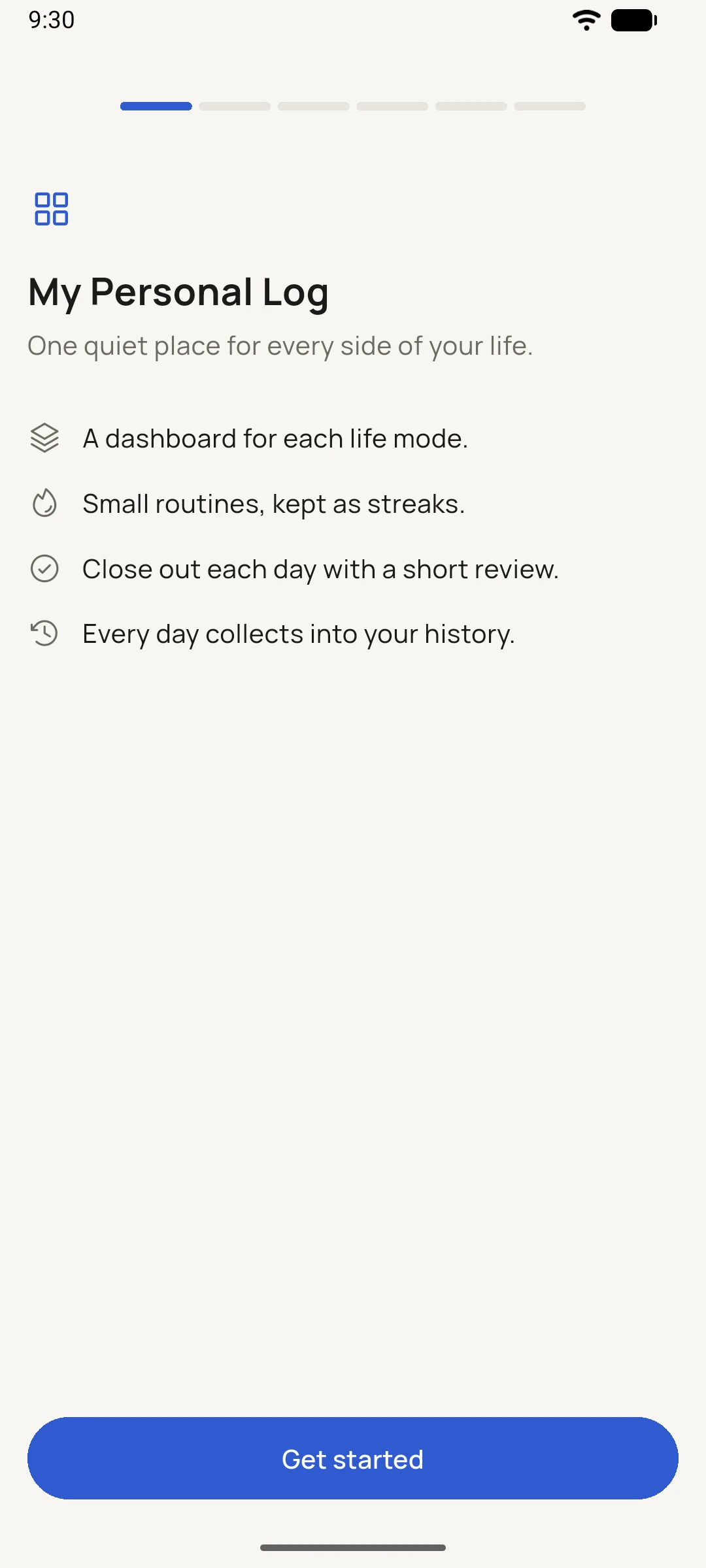
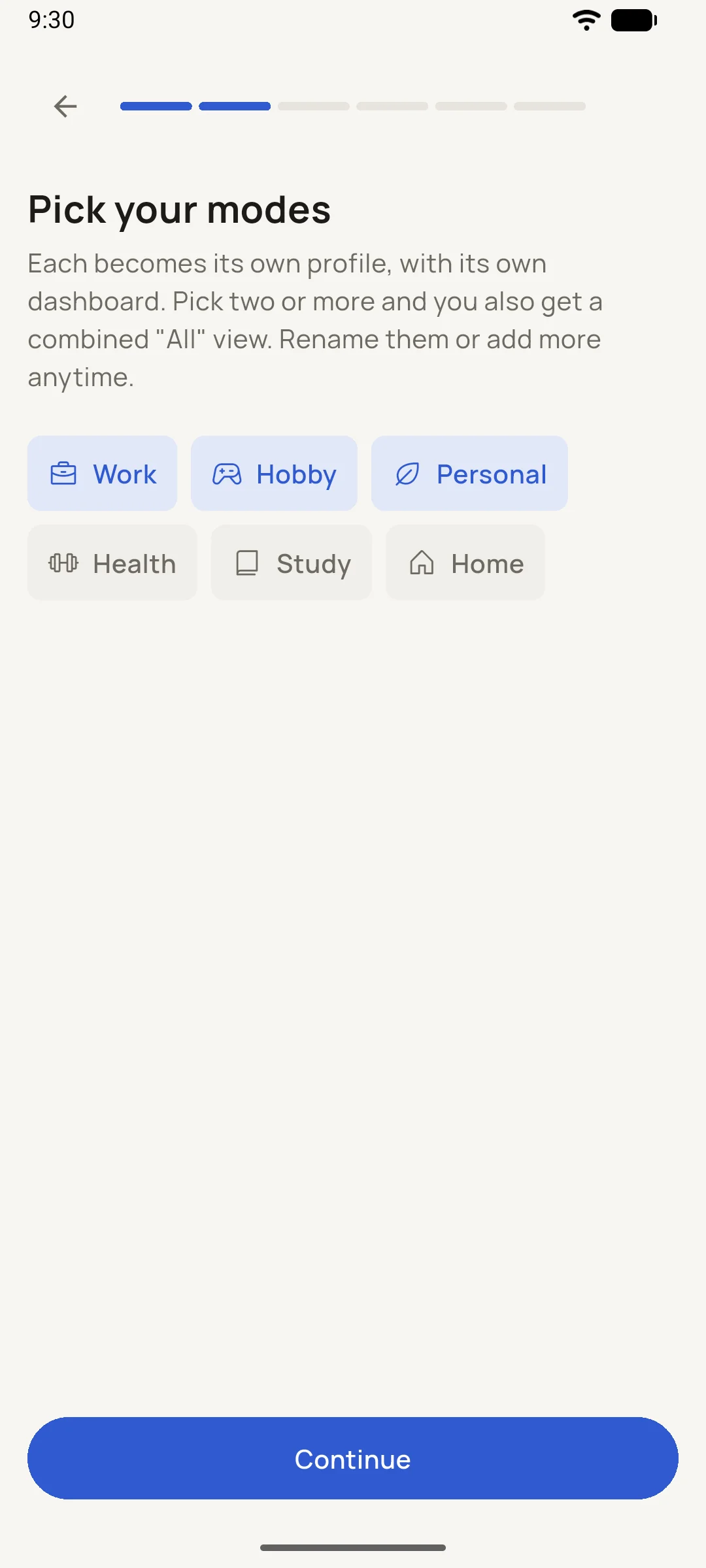
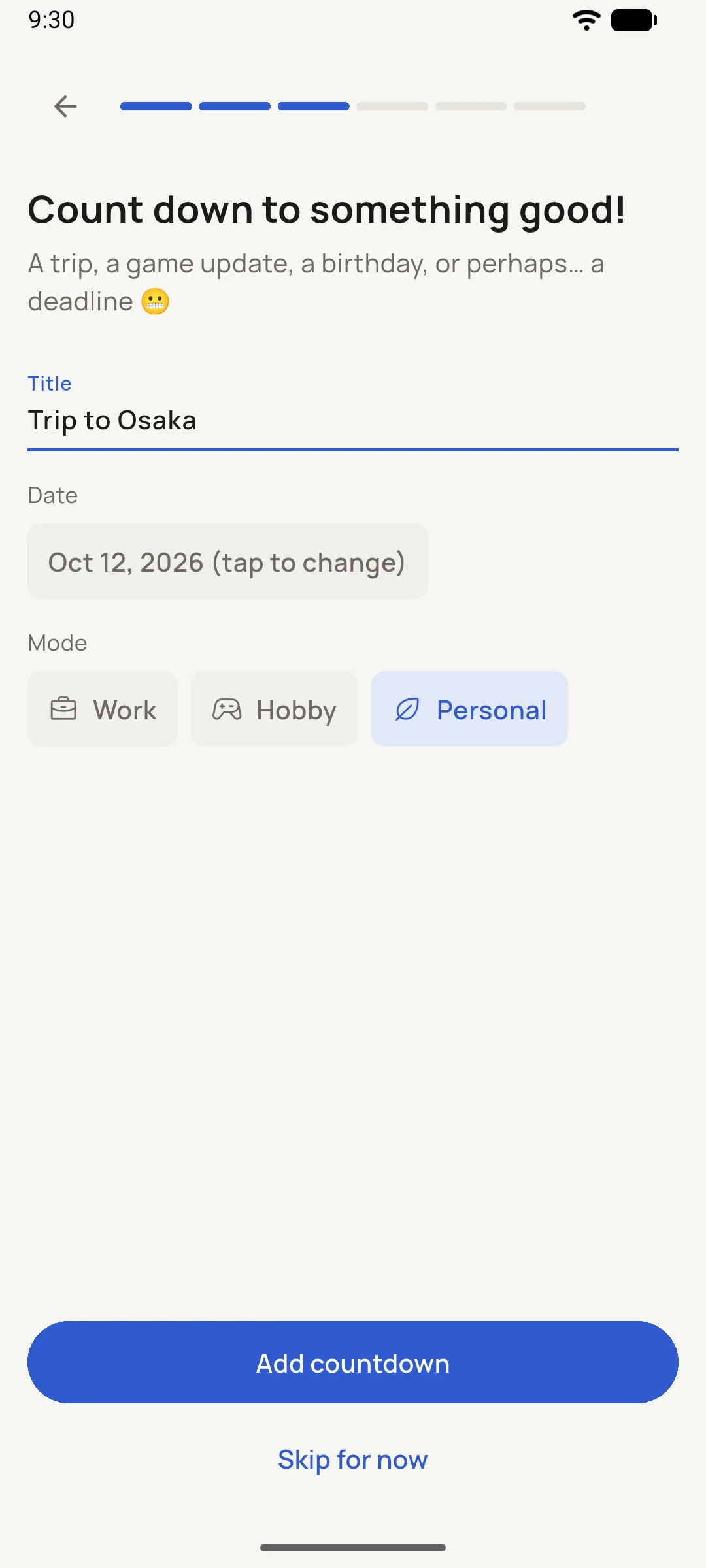
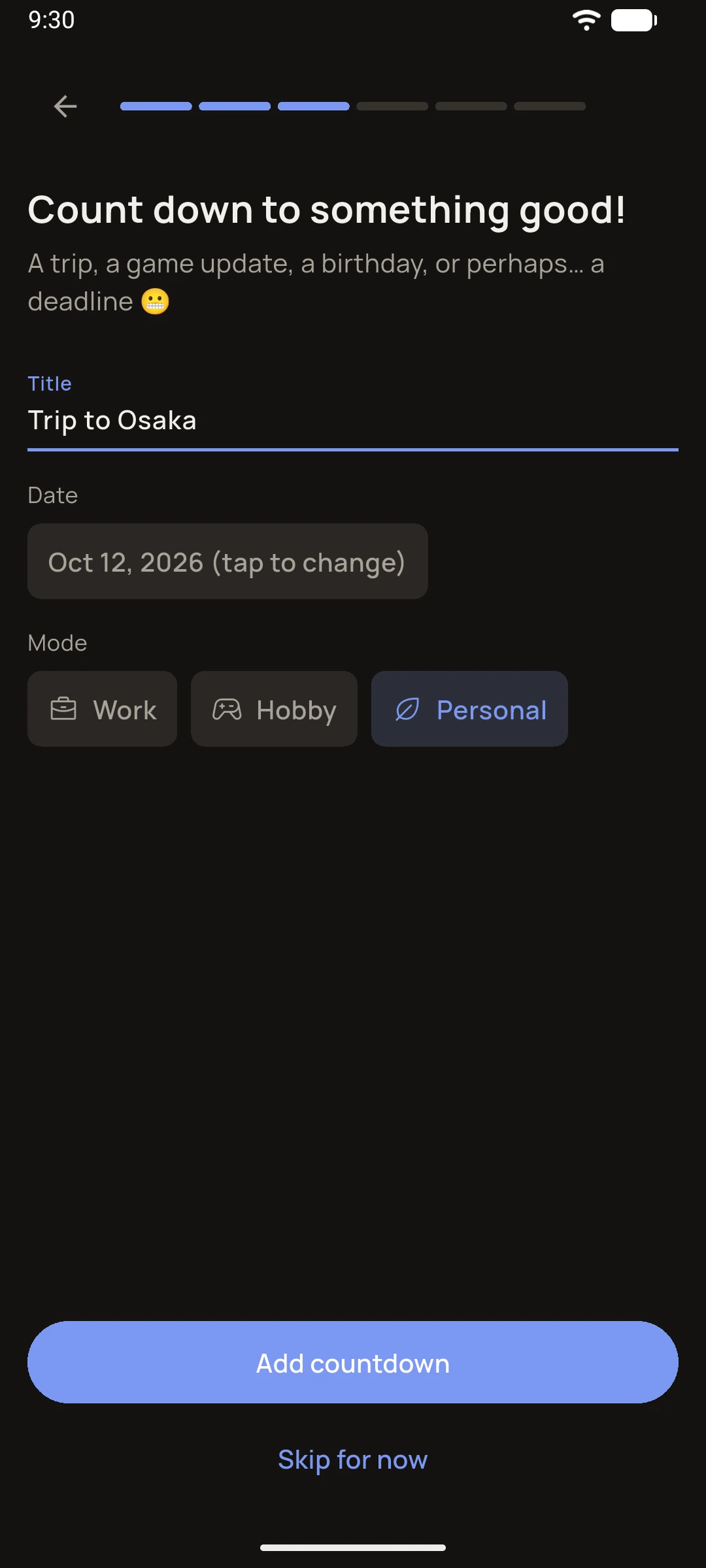
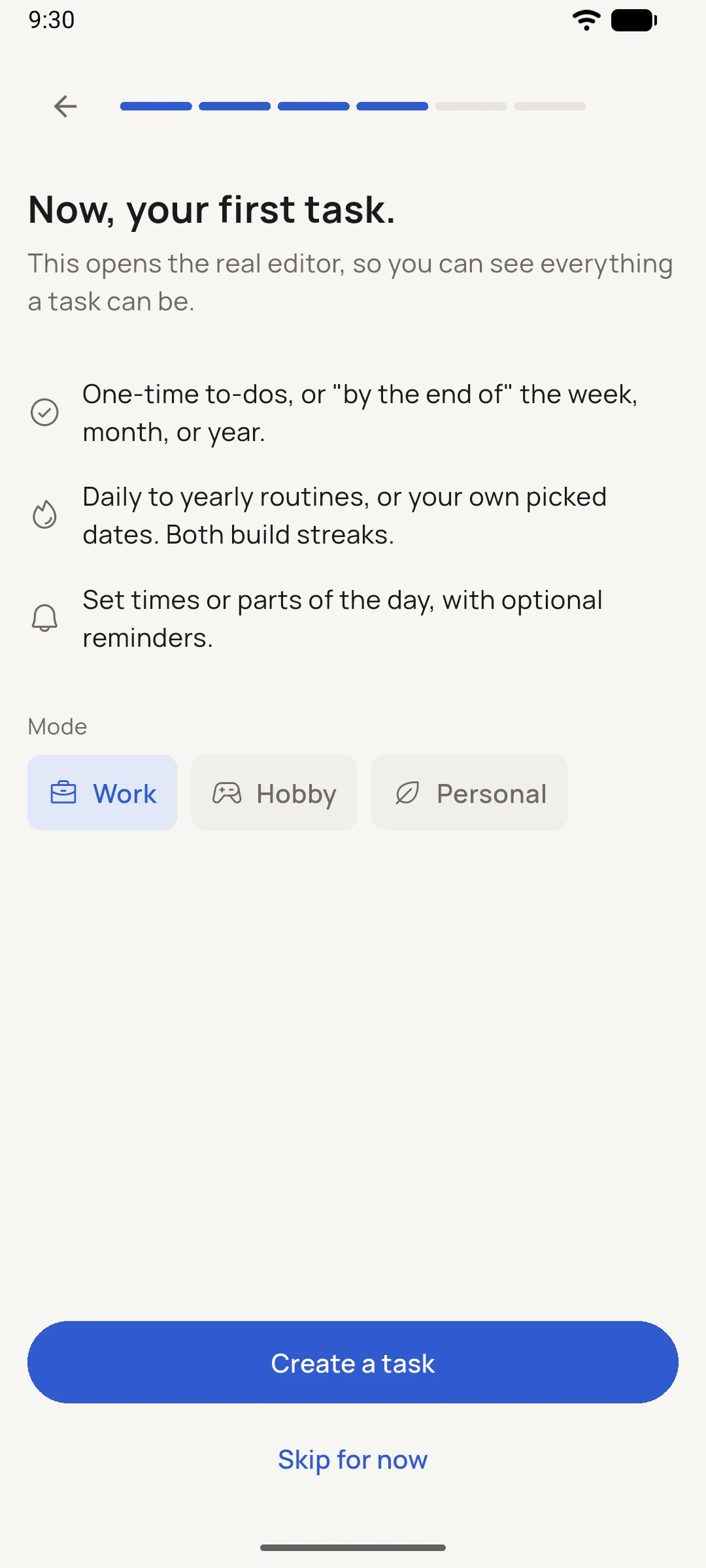
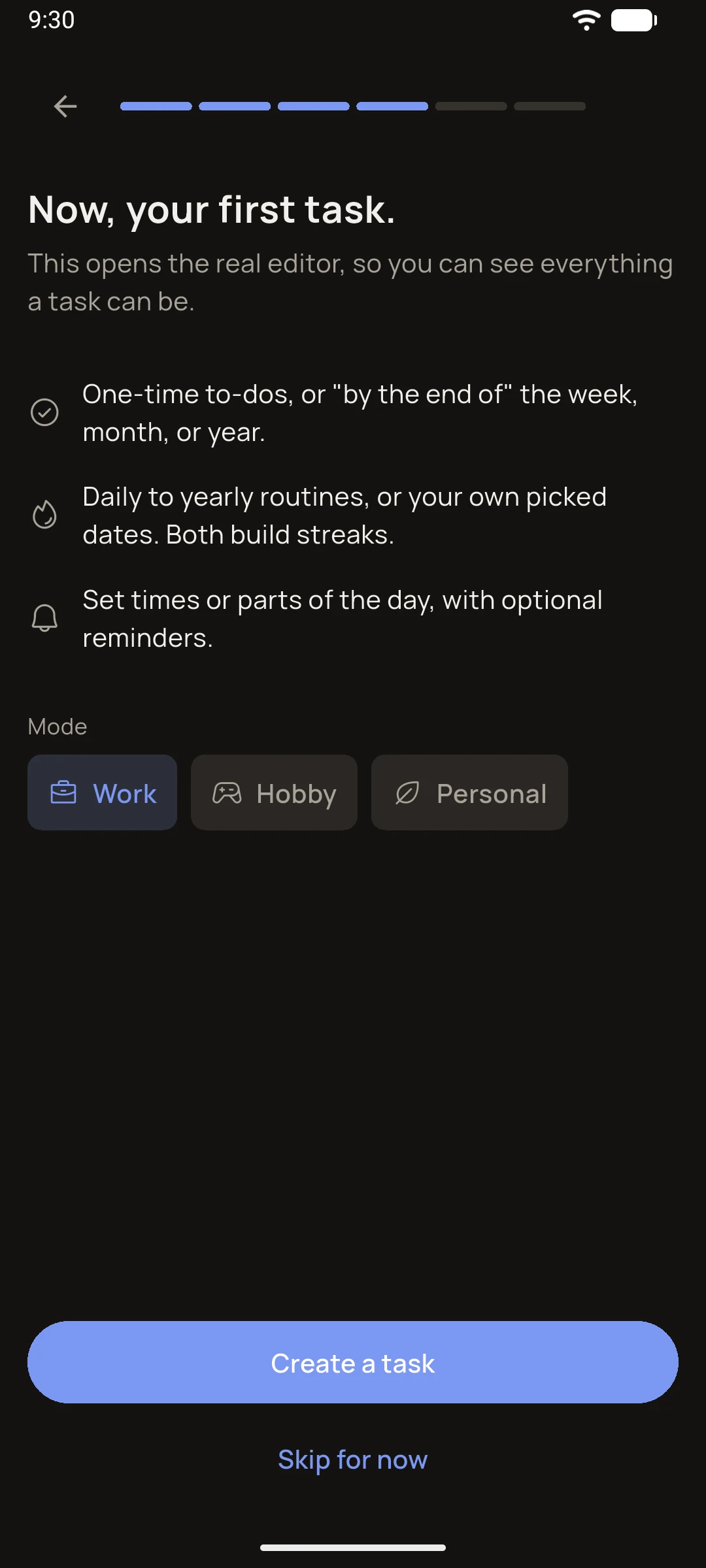
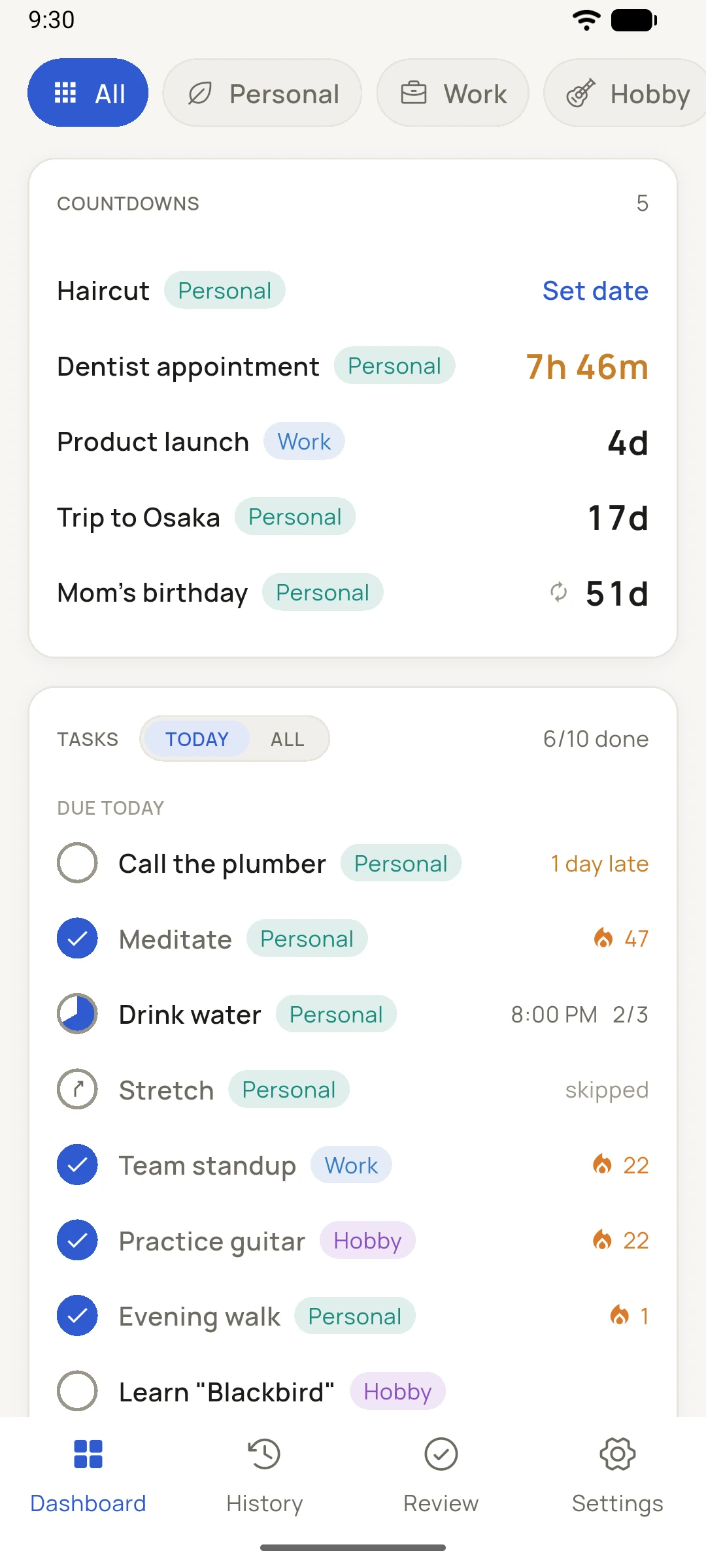
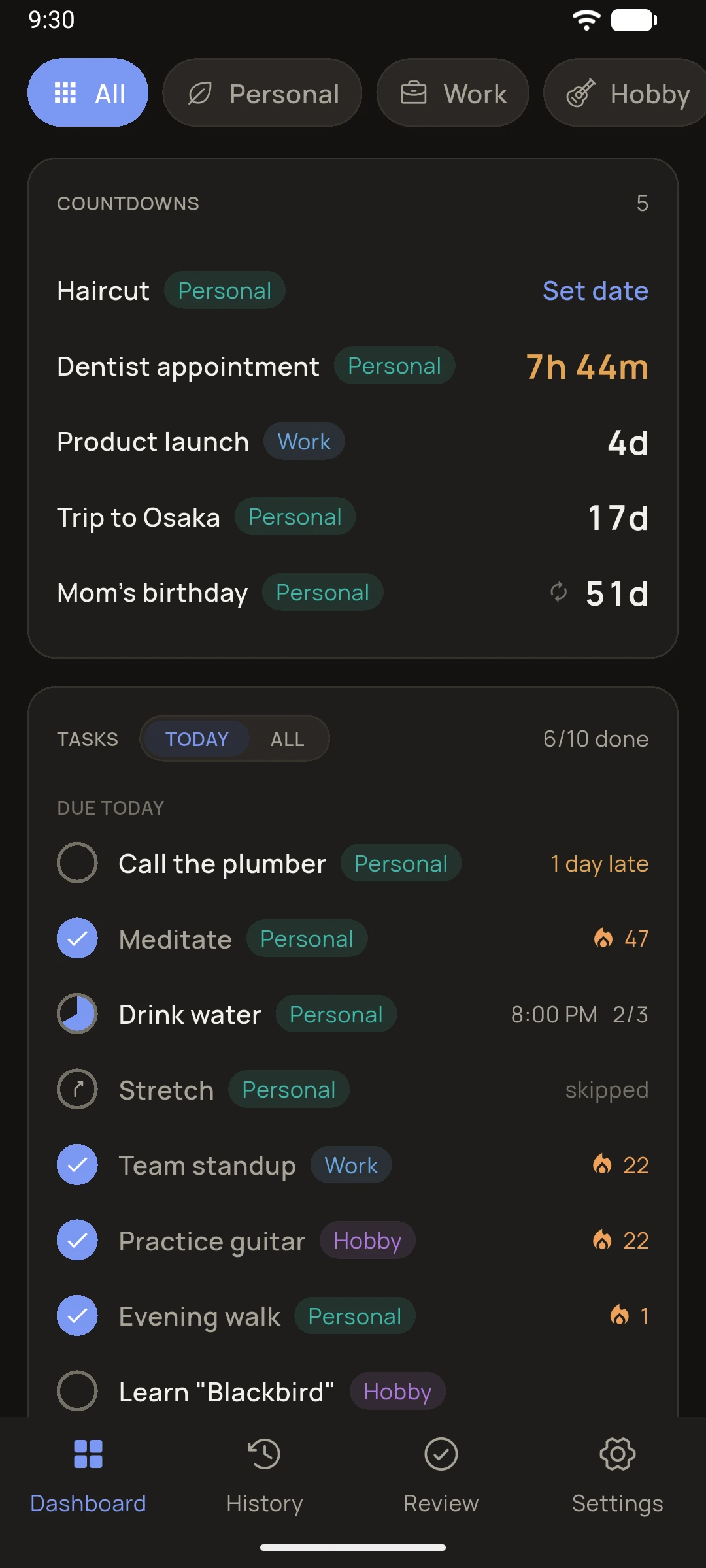
Pick from a selection of suggested profiles. Each becomes its own dashboard. Choose more than one and an "All" page appears, consolidating tasks, countdowns and notes across every profile in a single view.
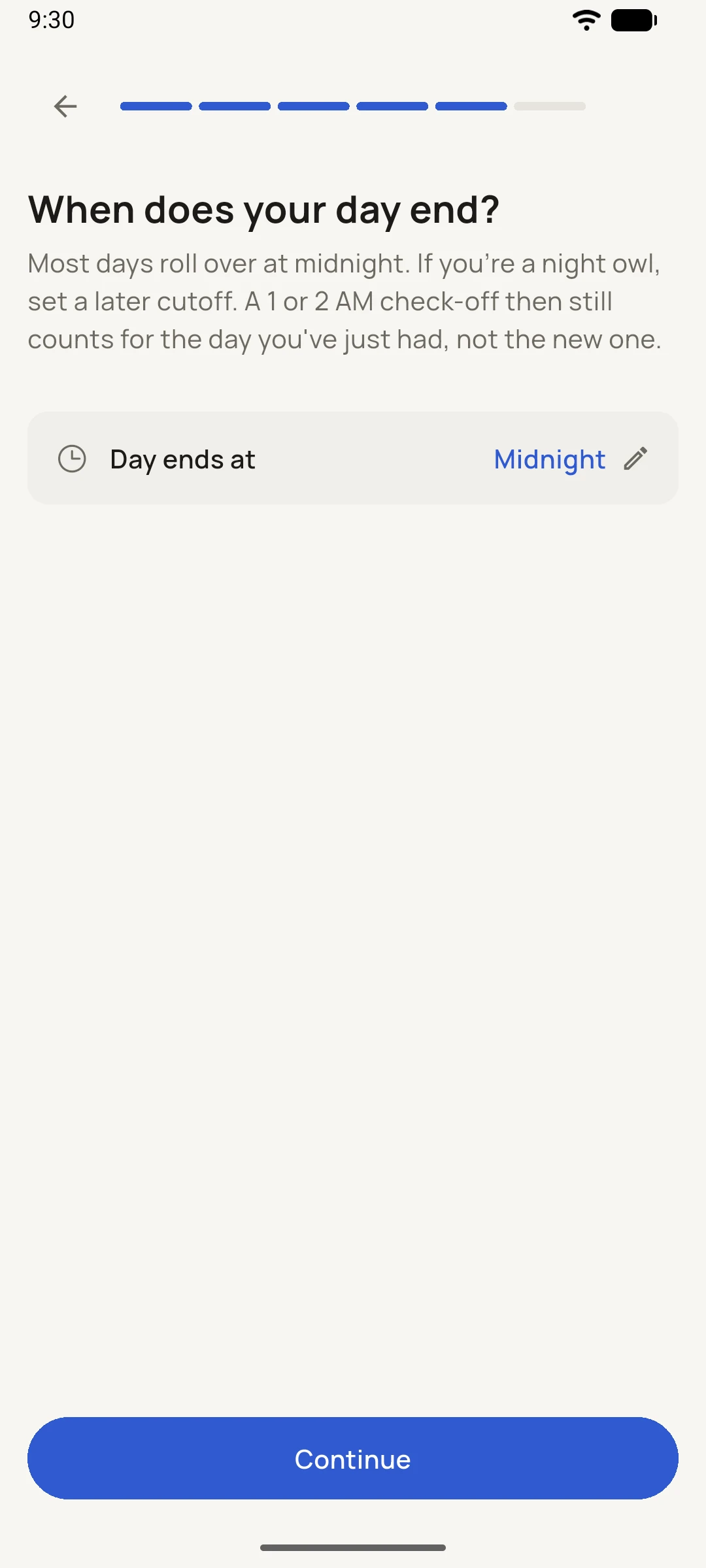
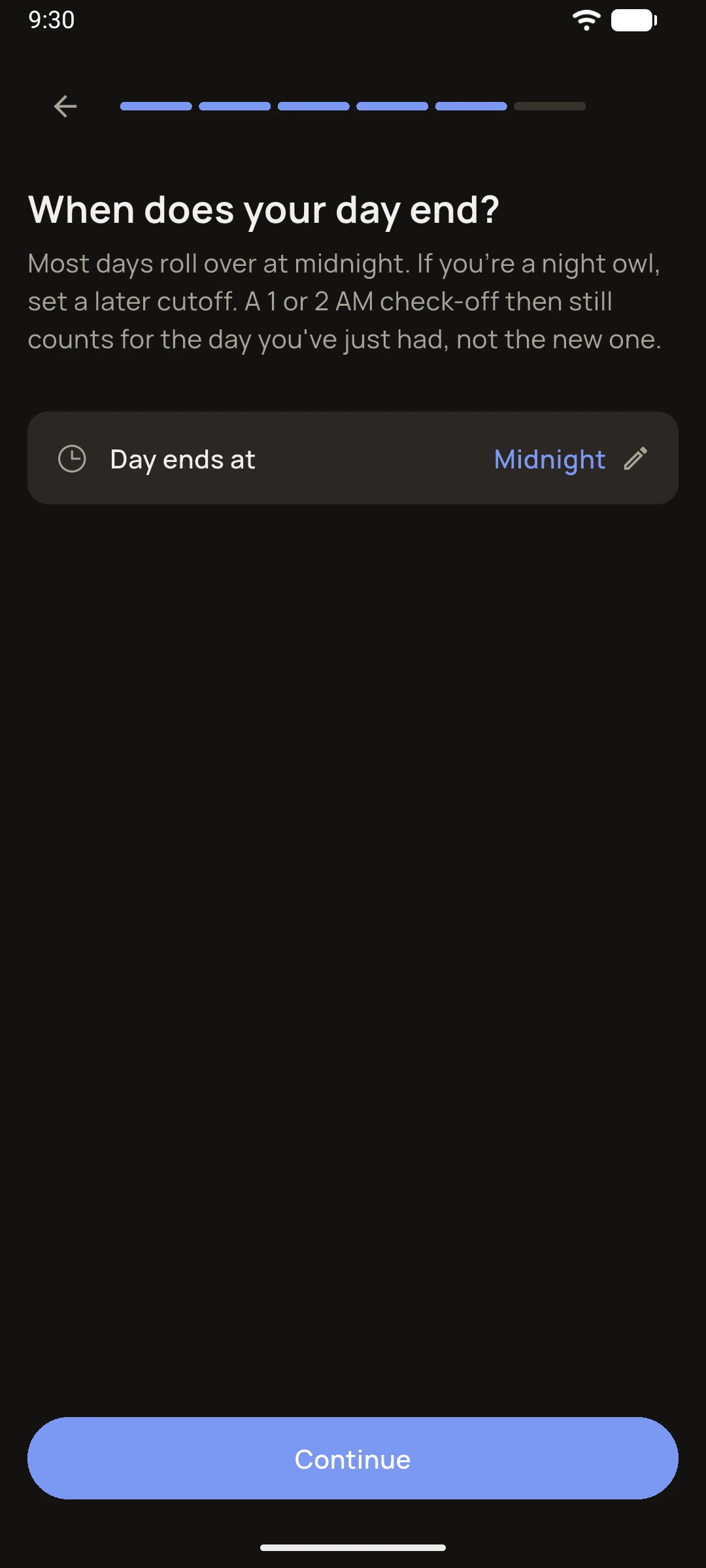
Create your first task or countdown, then set your day cutoff: if you tend to sleep at 2 a.m., set it to 2 a.m. so late-night completions still count as today.
Everything done during onboarding is editable later.
02
Navigate
Your profiles
Swipe left or right to move between profiles, or tap the pills along the top. Each profile is a dashboard of its own, with its own accent colour.
The round + button in the bottom-right corner of any profile view (except "All") opens a quick menu: Countdown, Task, Note (for whichever cards are on that dashboard) and Edit dashboard. Each card's footer also has its own + for adding items directly. To reorder profiles, head to Settings › Manage profiles and drag them into place.
Aside from reordering profiles, you can also edit the profile names and colours through the same settings page or simply tap and hold the profile pills at the top of your dashboard. Long-press the All pill to change the All view's colour.
03
Count
Create a countdown
Pick a date, give it a name, assign it to a profile. One-time events count down to zero and are done. Repeating countdowns (yearly birthdays, monthly check-ins, or a flexible custom pattern) reset automatically after they arrive, or prompt you to set a new date if you selected "Custom" > "Set new after event".
The countdown card keeps dates ahead in view, with the soonest one pulsing in its final 24 hours (all-day countdowns just count days). After the event, you can write a short reflection if you'd like (or not).
Note: The countdowns card shows the 3 nearest events by default. You can change that in its card options.
04
Build
Create a task
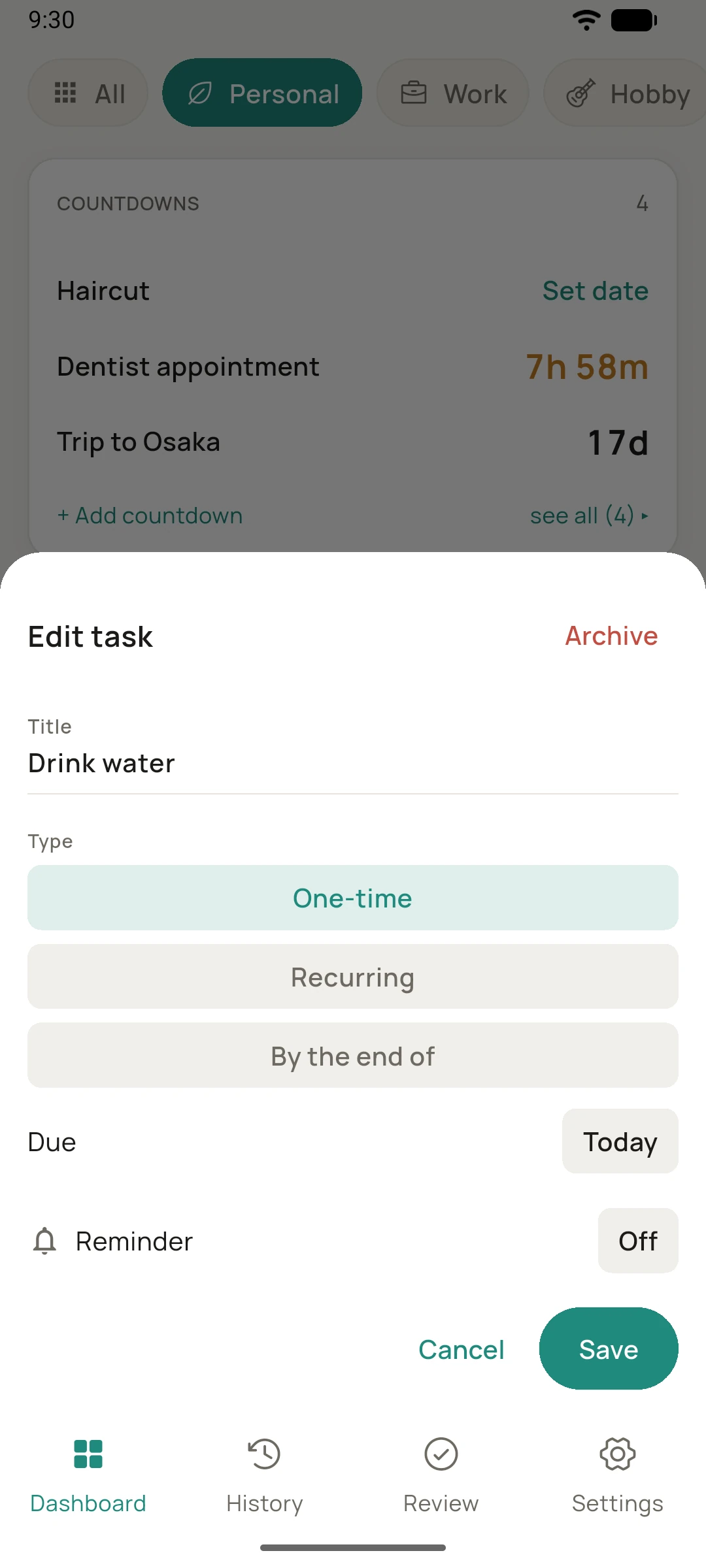
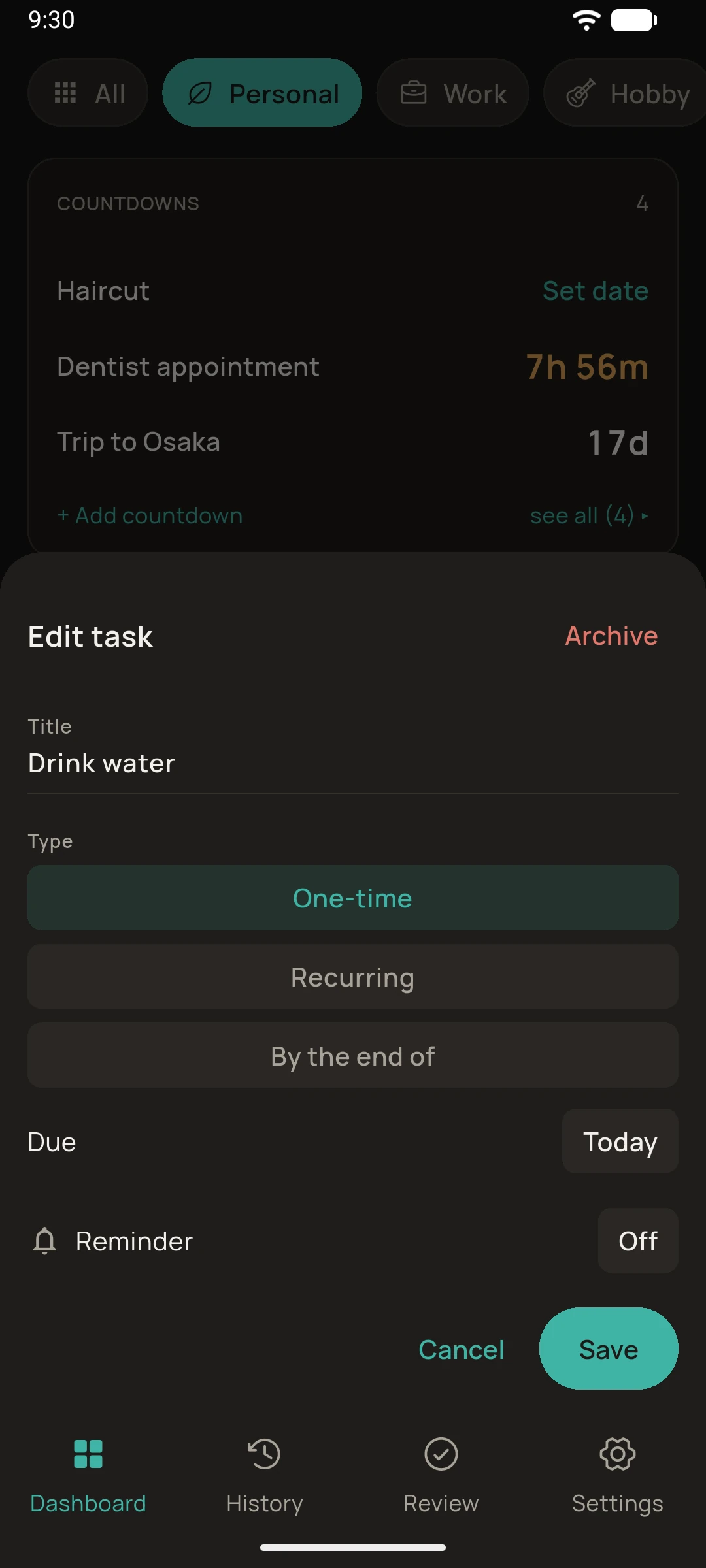
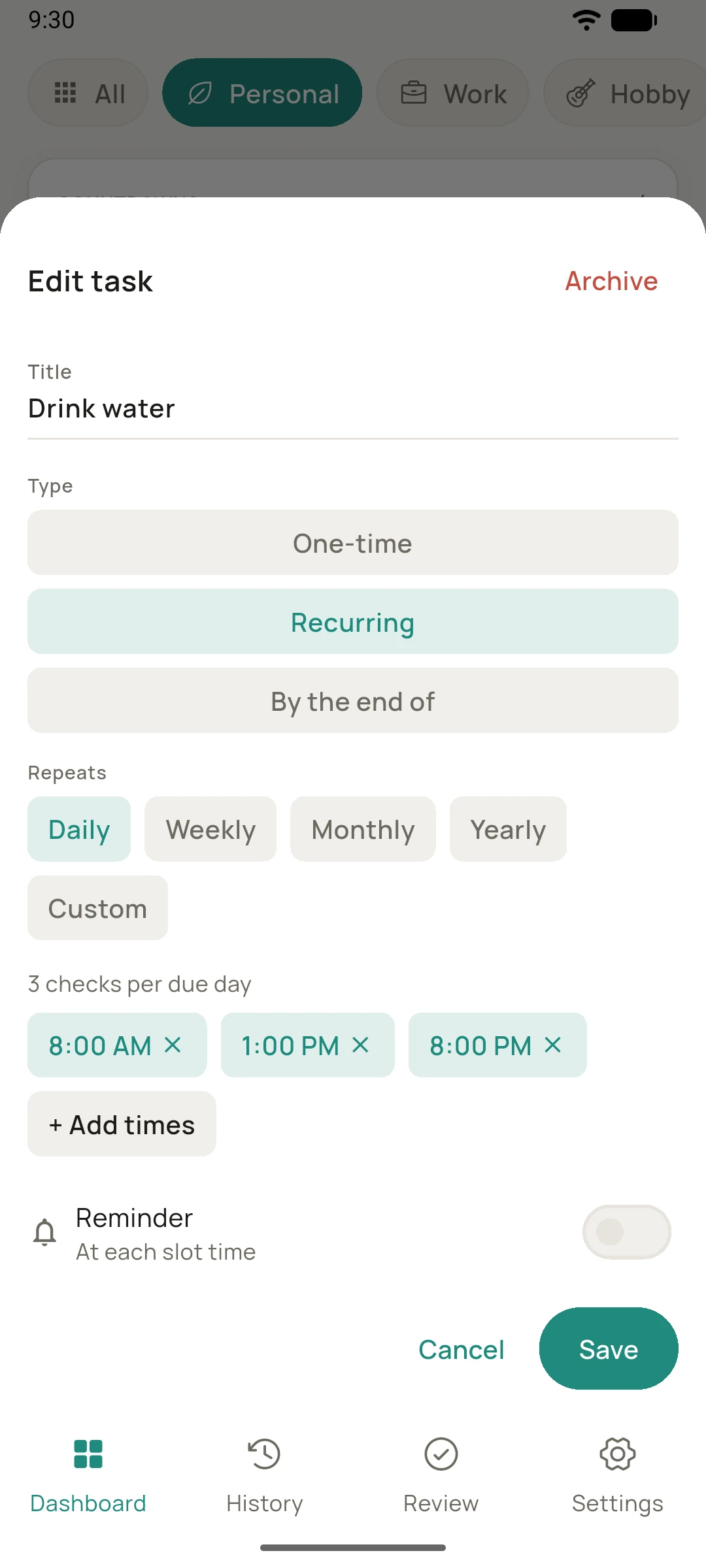
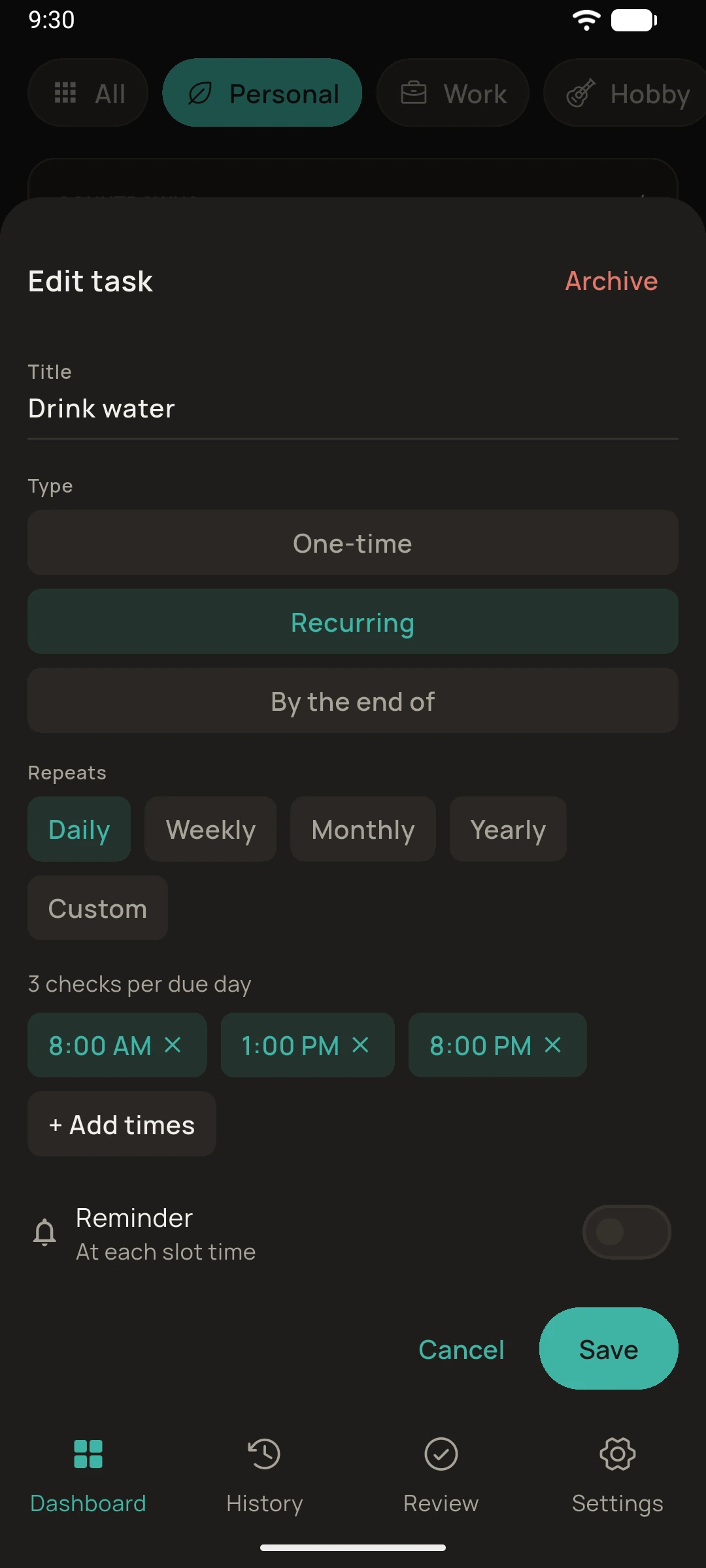
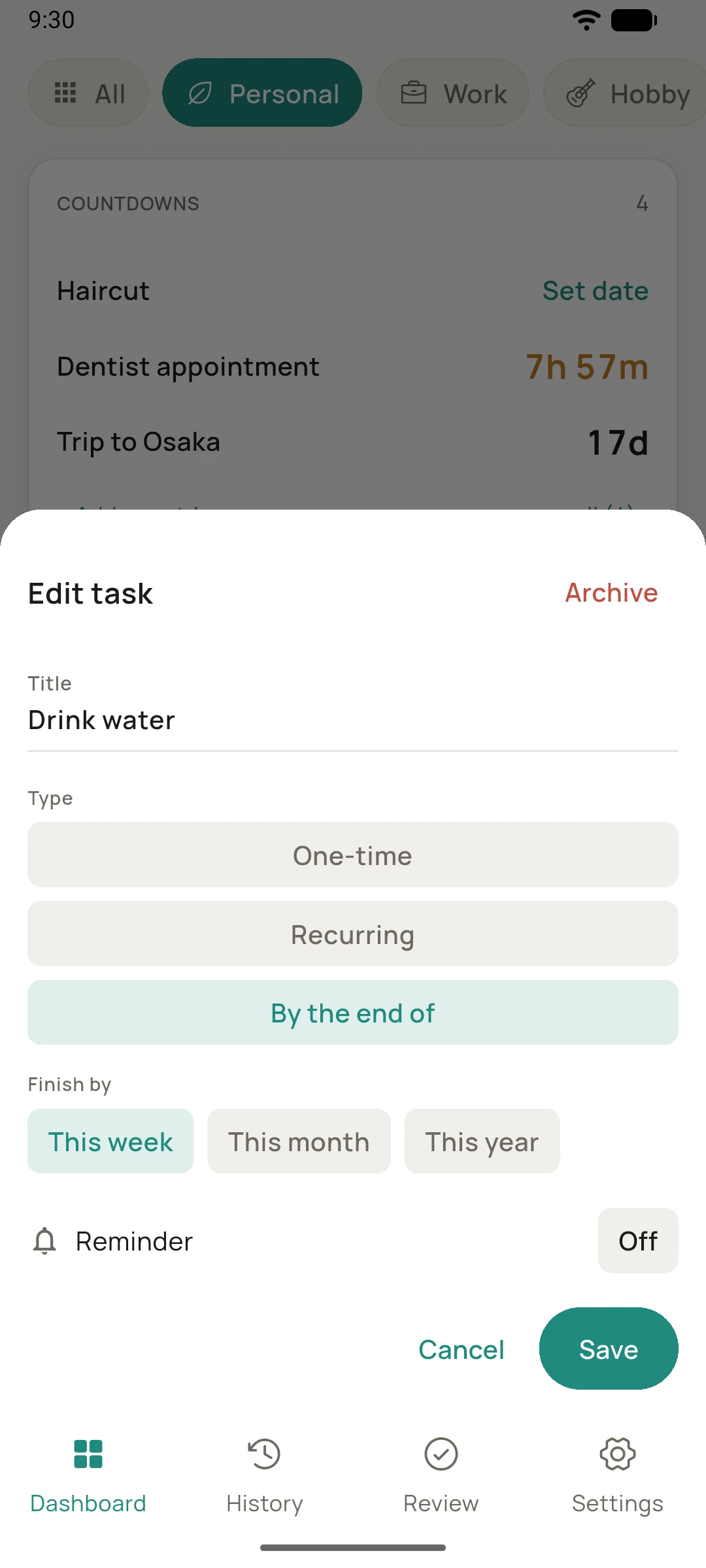
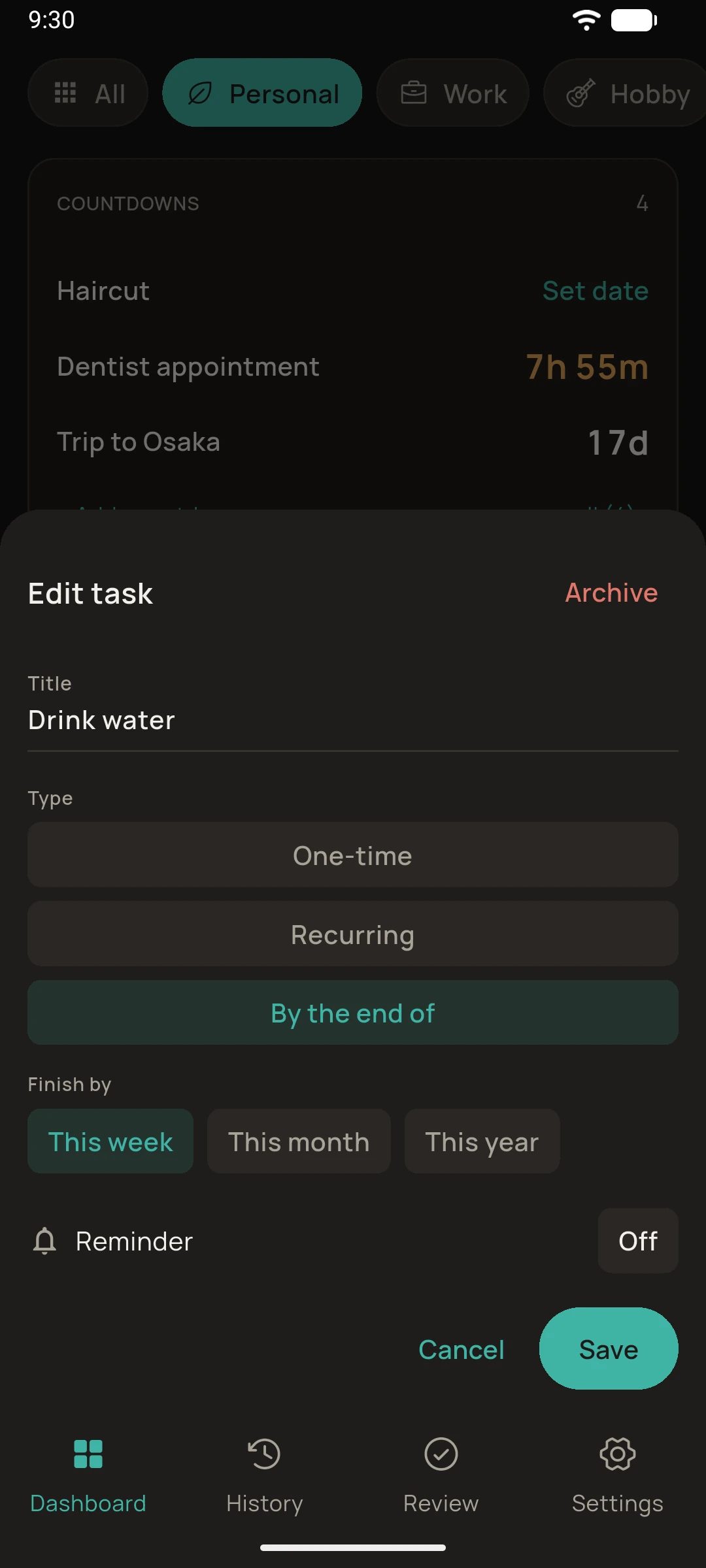
Three shapes of task cover most routines. One-time tasks finish when done. Recurring tasks repeat on a schedule (daily, chosen weekdays, a day of the month, a date each year, or custom-picked dates) and can split into time slots (morning, afternoon, evening, or specific times). Flexible deadlines ("by end of week/month/year") handle the someday-soon items without daily nagging.
Any task can carry a reminder: tasks with specific times ring at each time, and any other task nudges once at a time you choose.
Note: The tasks card shows every task by default. You can change that in its card options.
05
Capture
Create a note
Notes hold the loose thoughts that do not fit a date or a checkbox: a wishlist, a list of books you want to read or shows you want to watch. Give it a title and write as much or as little as you like. Pin the ones you want kept at the top.
Add a note from the round + button on any profile view (except "All"), or straight from the note card's footer with + Add note. Tap a note any time to open it, then Edit to change it.
Note: The notes card shows the 3 most recent notes, pinned ones first, by default. You can change that in its card options.
06
Day to day
Check things off
Open the app, see what today asks, and tap things done. The task card's header has a Today / All switch: Today shows what's due now with flexible items tucked under Optional, while All opens the full list for planning ahead.
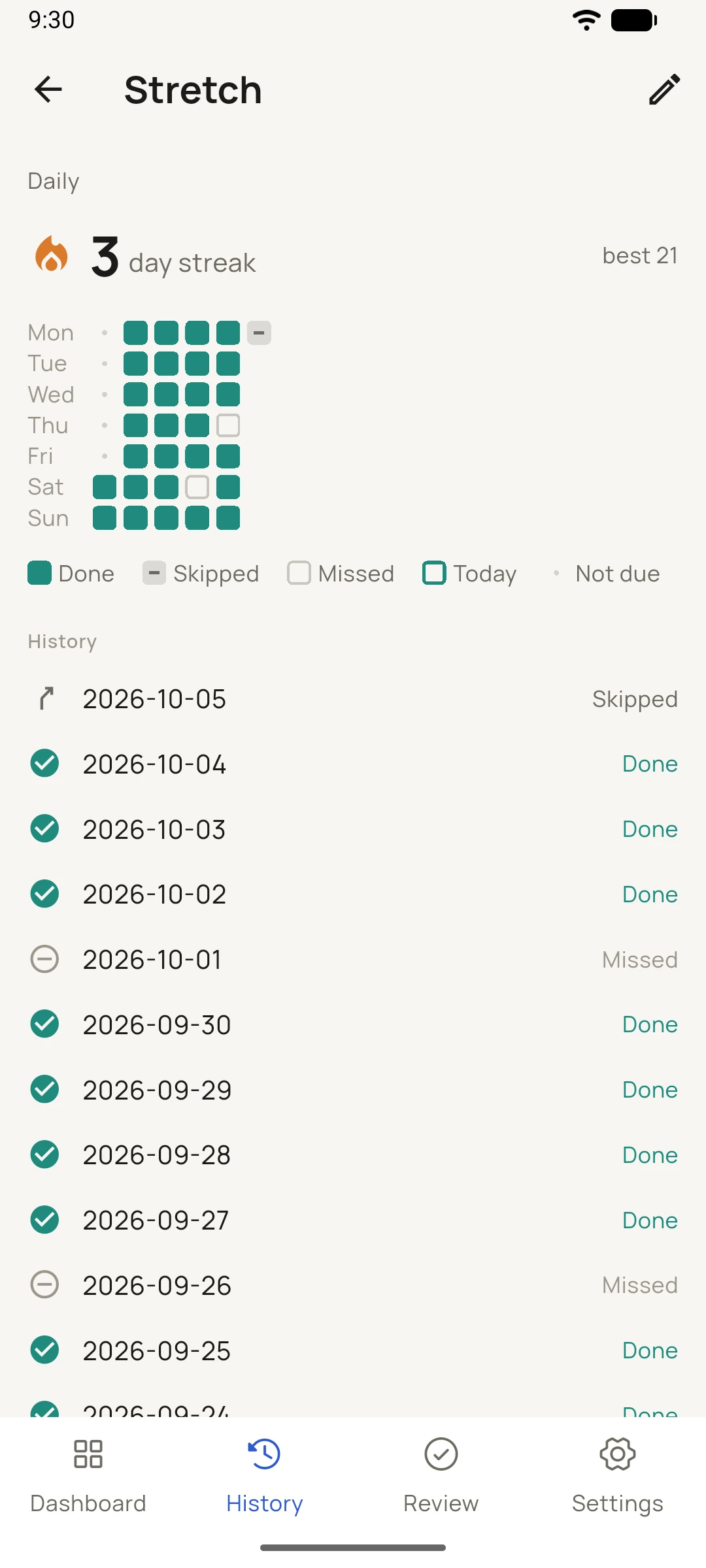
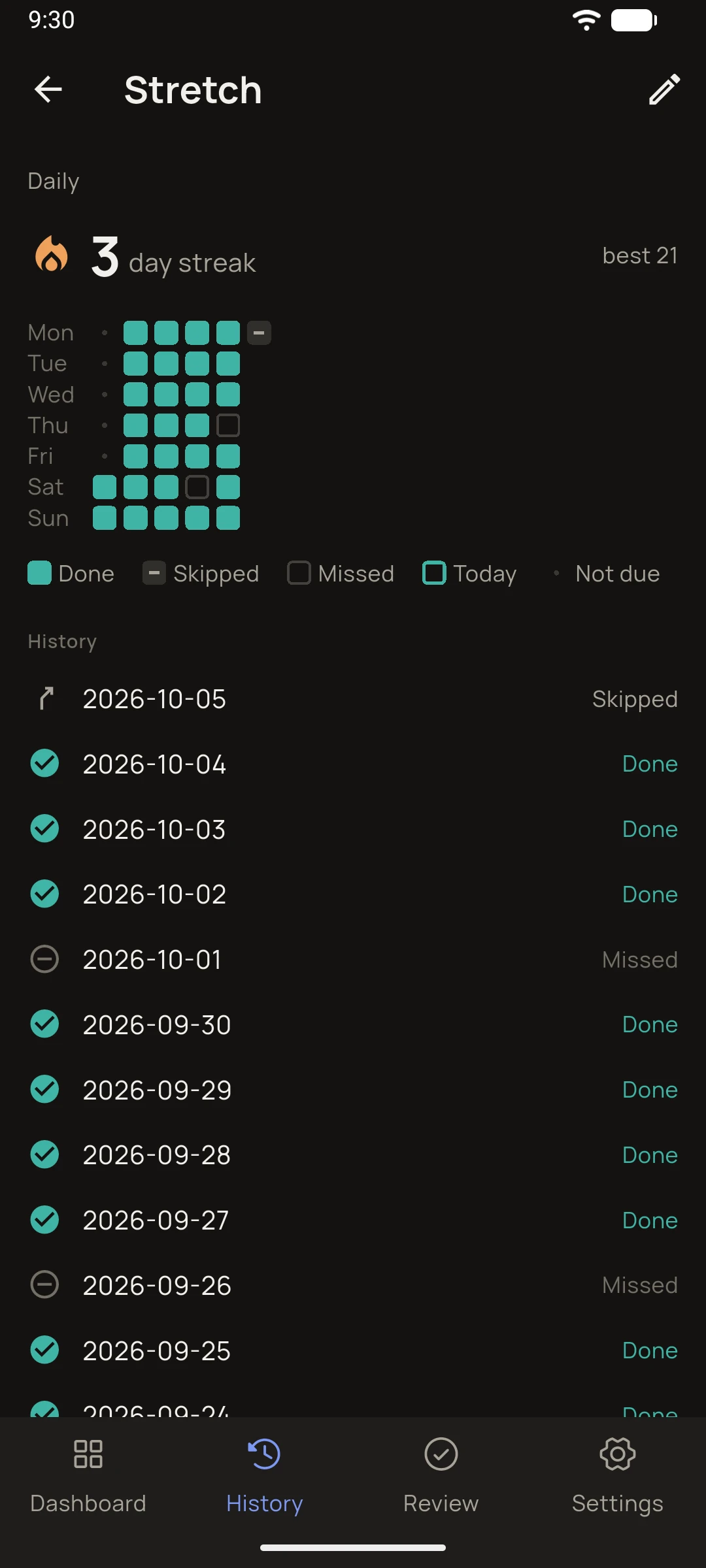
Streaks tick up for recurring tasks. If today genuinely isn't the day, skip instead. A deliberate skip preserves your streak; only a silent miss breaks it. Forgot to mark it as complete yesterday even though you did the task? You can still retroactively mark a task as complete one day late.
07
Reflect
Close the day
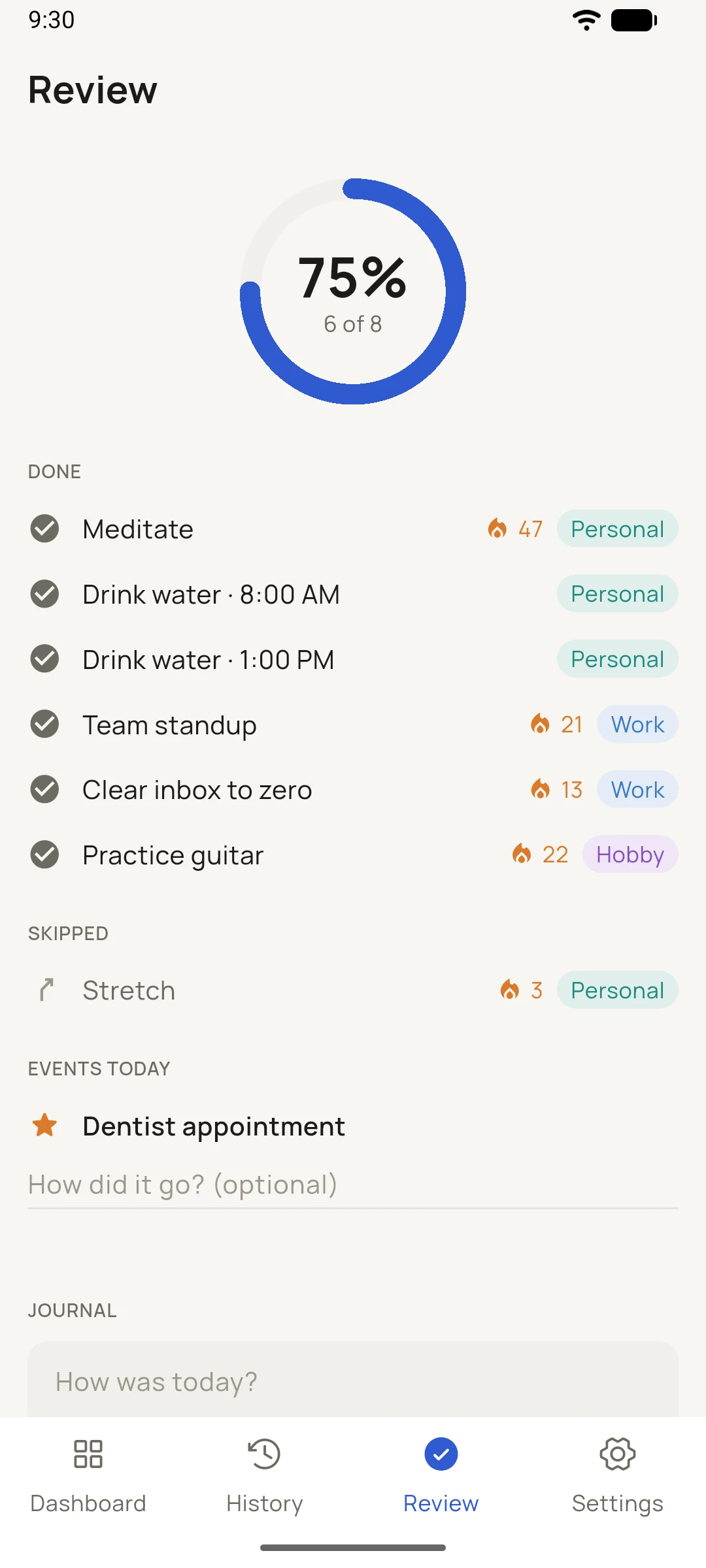
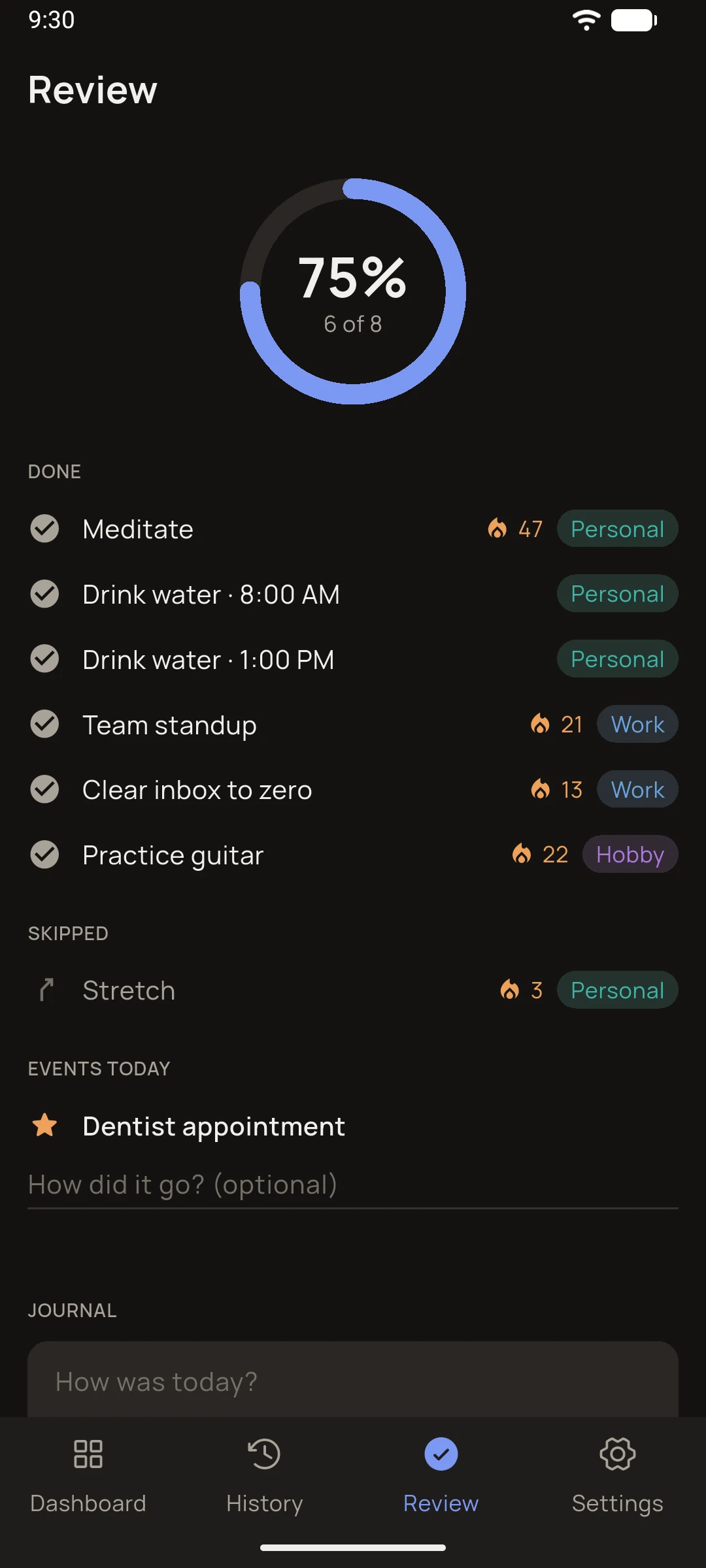
When your day winds down, open the Review tab. It gathers everything from all profiles into one summary ring: what got done, what was skipped, which events arrived.
Add an optional journal line about how the day went, then Finish day. A brief celebration caps it off. Forgot last night? A catch-up banner lets you close yesterday next morning. Night owls, if you set your day cutoff at 2 a.m., it means that 1:59 a.m. task completions count as tonight.
08
Keep
Your history builds itself
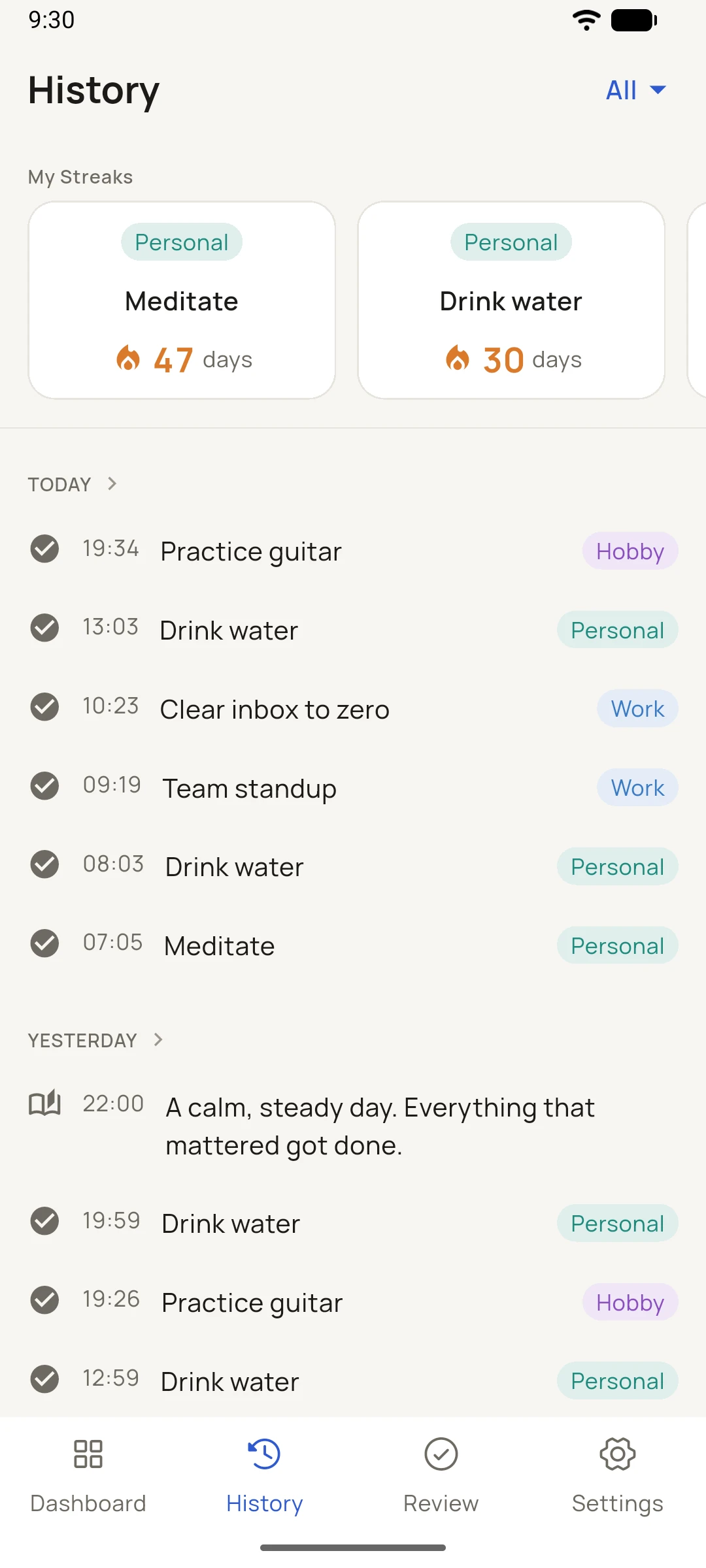
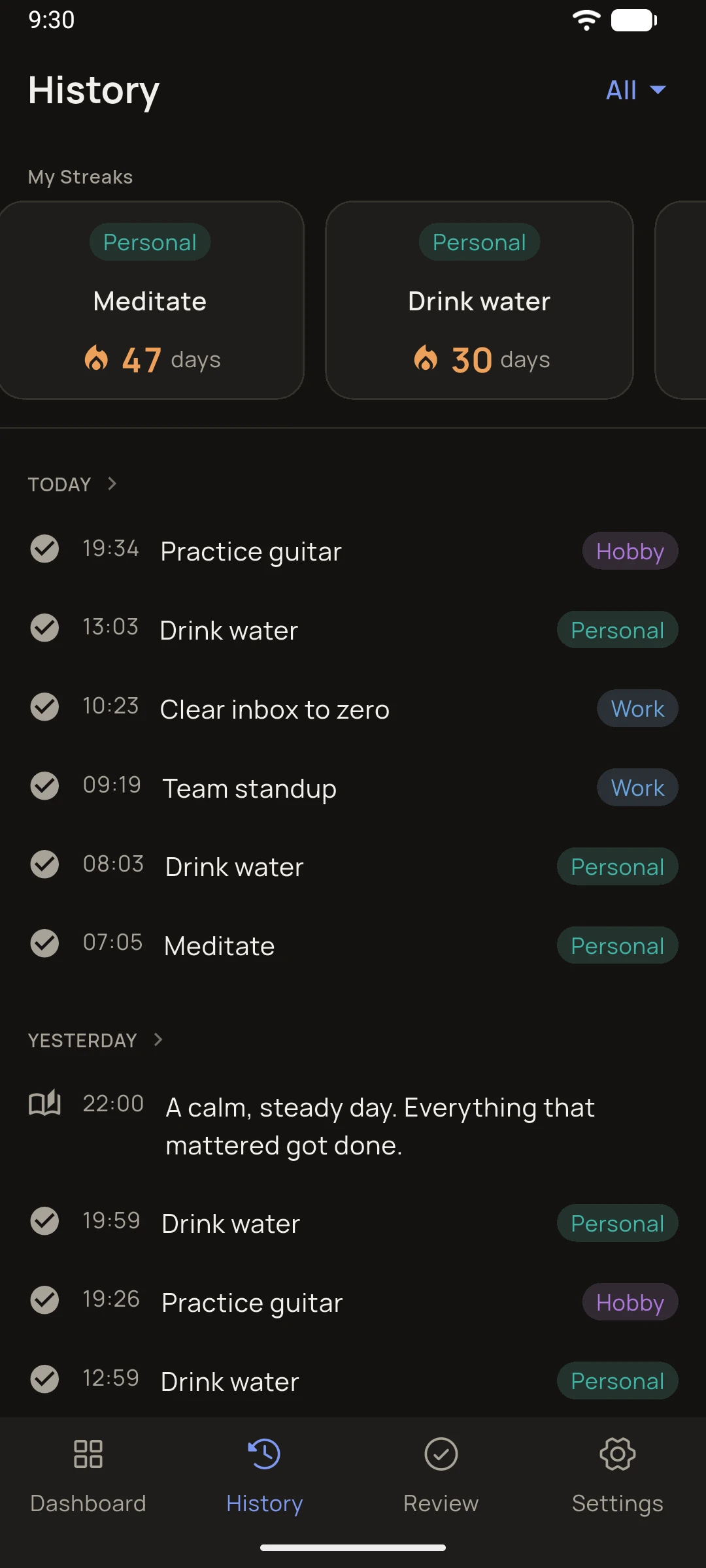
Everything you do files into the History feed as it happens: completions, journal lines and events (notes and profile creation too, if you turn them on). A "My Streaks" row at the top shows every running streak, each tagged with its profile.
Filter by profile here, and choose which kinds of entries appear in Settings › History. Tap any day to reopen its review exactly as it closed. Nothing here is busywork. It accumulated while you lived your days.
Your dashboard
Make it yours.
Tap an action to see it ↓
Your cards
One dashboard, three cards.
Tap an action to see it ↓
Tap an action to see it ↓
Tap an action to see it ↓
Beyond the dashboard
Where your days accumulate.
History
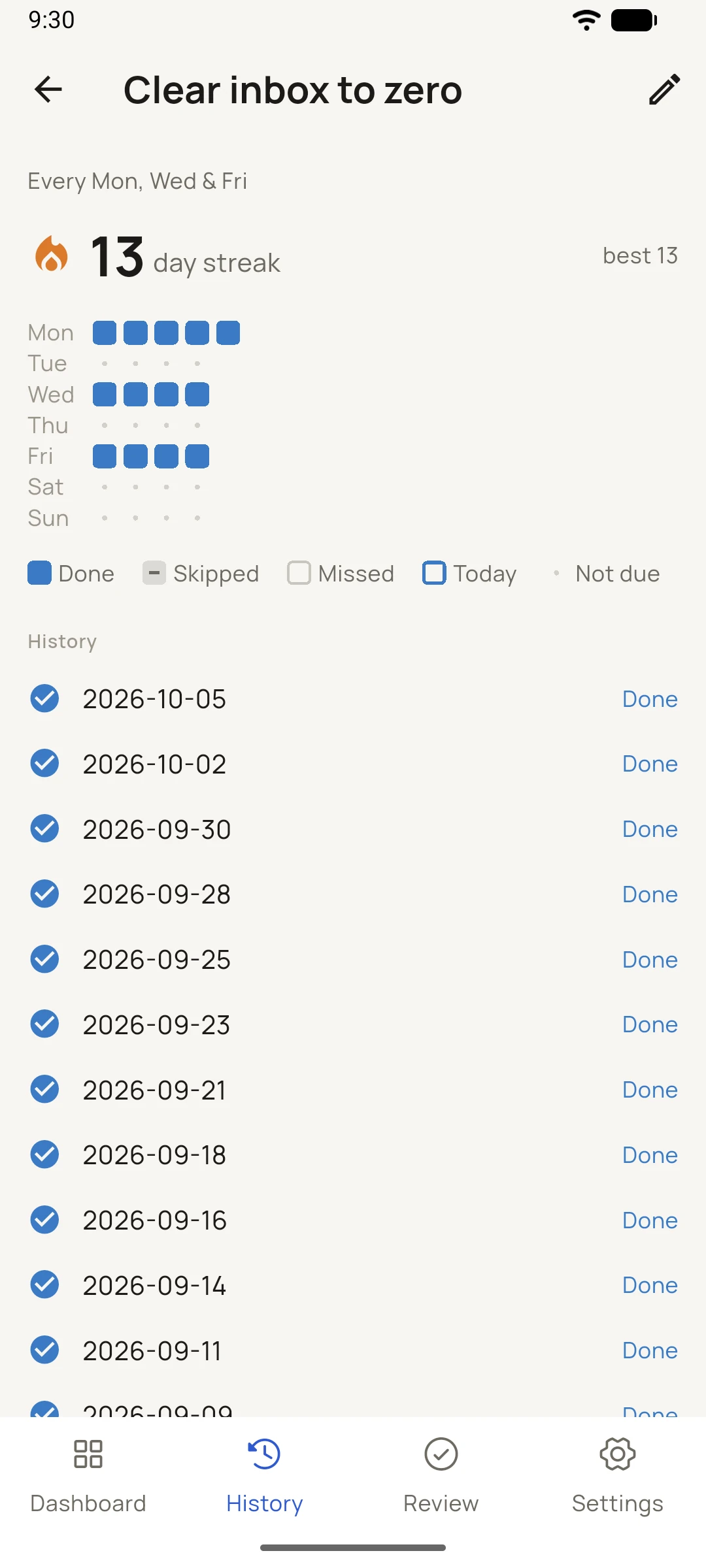
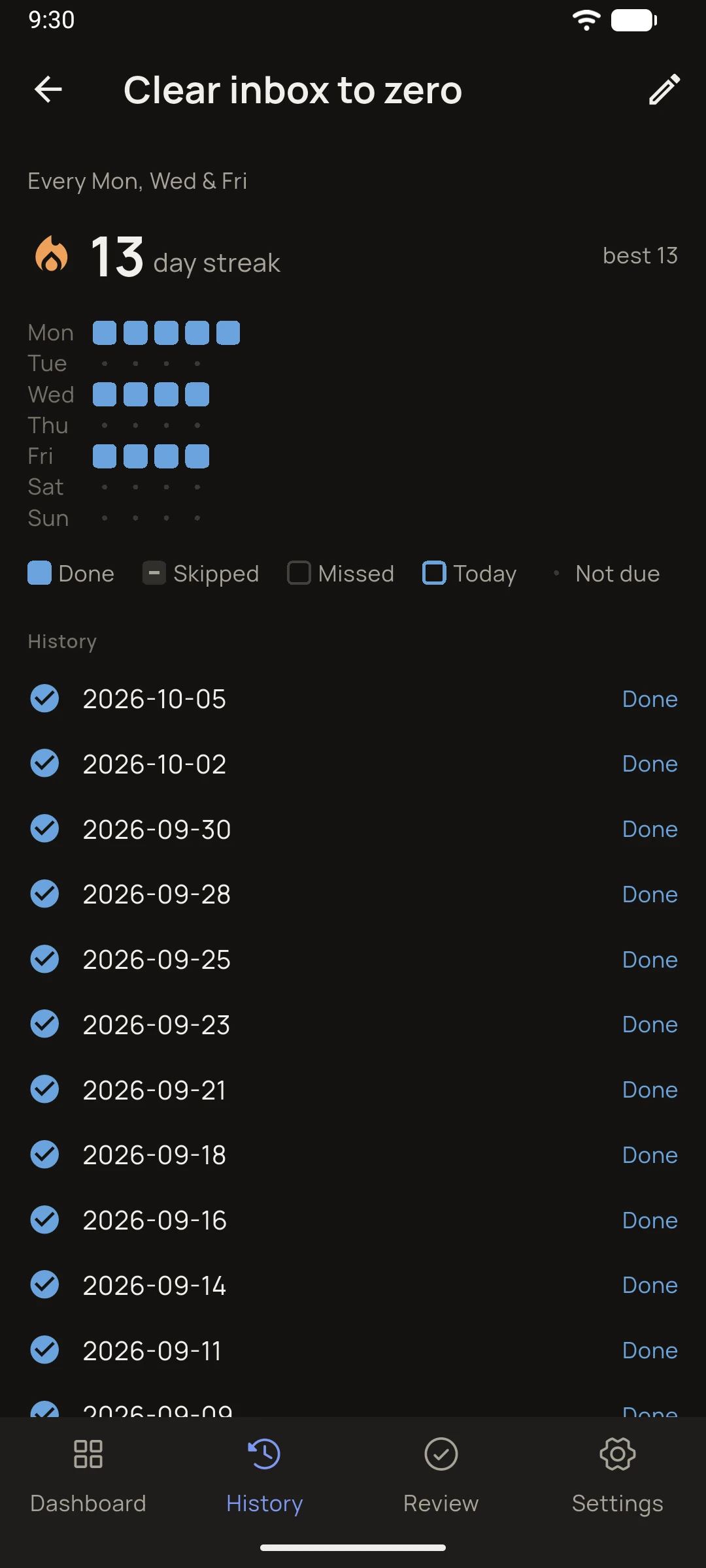
A day-by-day record that builds itself as you go. A "My Streaks" strip at the top shows every running streak, each tagged with its profile. Tap one to see its full history with a contribution grid, each day marked done, skipped, missed, or not due.
Filter the timeline by profile here, and choose which kinds of entries appear in Settings › History. Tap any day's date to reopen that day's review exactly as it closed, read-only, except yesterday, where you can still tick off what you forgot. To hide a single line, long-press it and choose "Remove from History": the item itself stays on its dashboard, only the history line disappears.
Review
The Review tab gathers today's work across all profiles into one completion ring. Done and skipped tasks show with their streak counts, and an optional journal line lets you reflect on how the day went. Finish day closes it with a brief celebration.
Catching up on yesterday. Did something yesterday but forgot to tick it? There are two ways back:
Didn't close yesterday? The next morning the Review tab shows a "Yesterday wasn't reviewed" banner. Tap Review yesterday.
Already closed it? Open History and tap yesterday's date.
Either way, tap any task you actually did to tick it off for that day. A recurring task rescued this way counts for the day it was due and repairs its streak, so a single forgotten evening doesn't break a run you kept. Only yesterday can be changed; older days stay as they closed.
A finished day's review keeps "Left undone" and "Handled later" separate: late work shows on both days and counts on one, so the record reads the same from either end.
Archive and delete
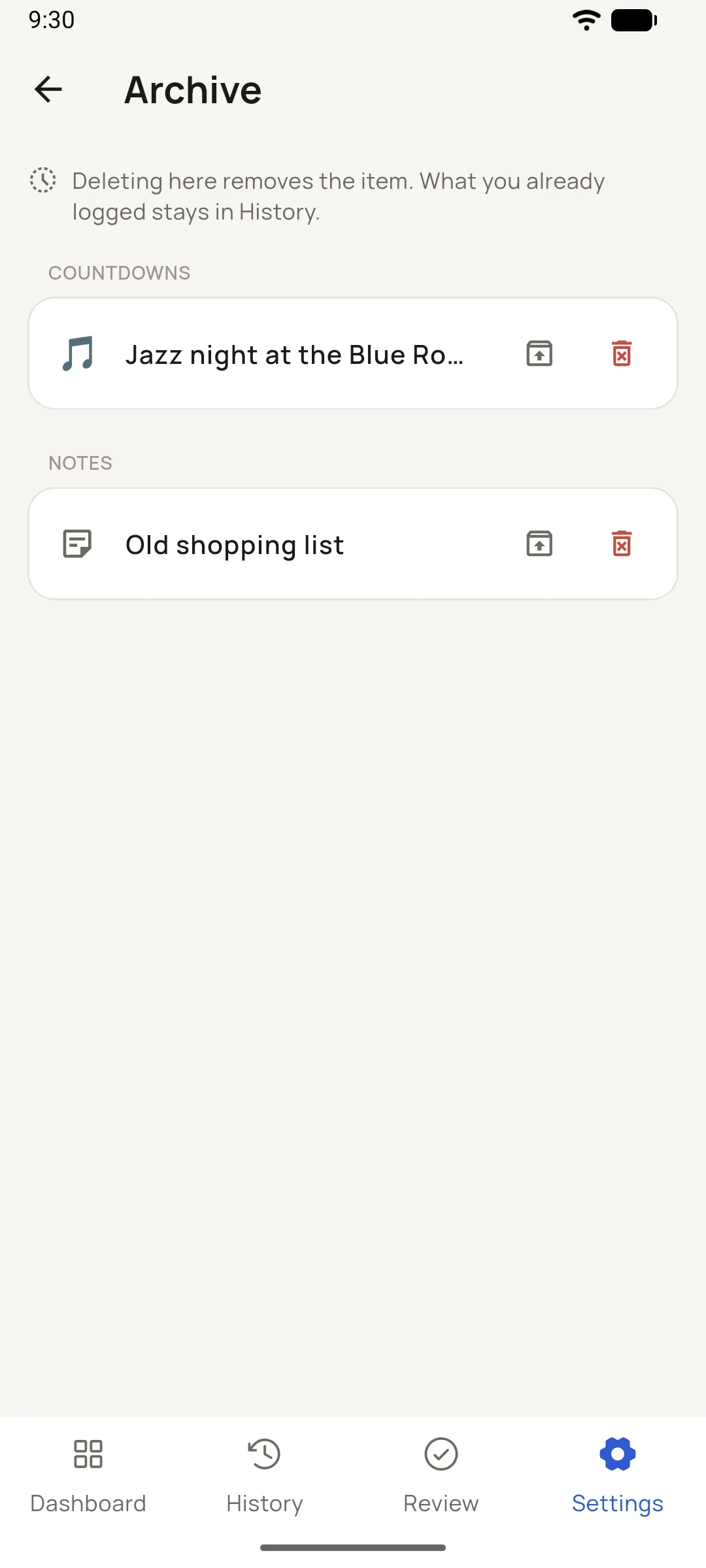
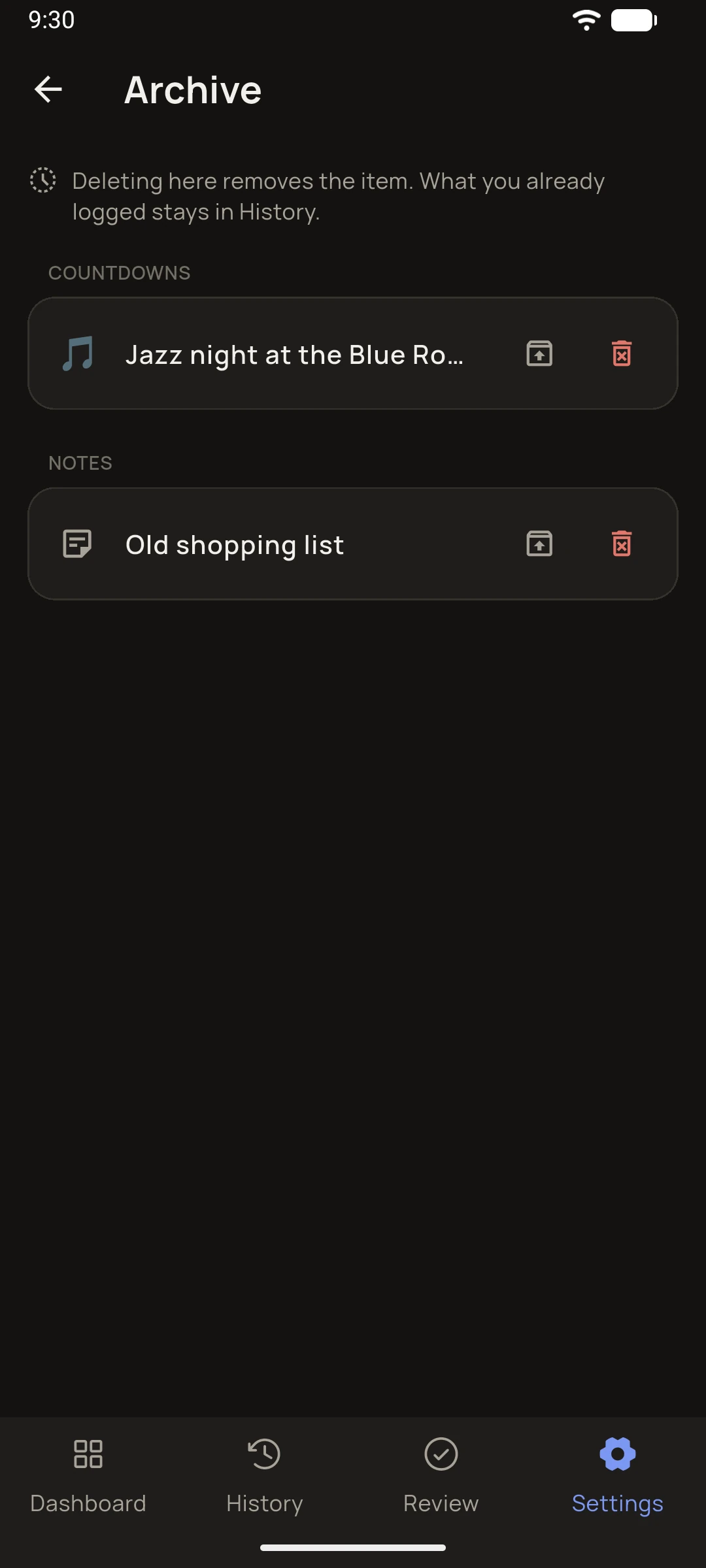
Archiving is the everyday way to clear something off your dashboard. It lands in Settings › Archive, where you can restore it any time.
To get rid of something for good, open Settings › Archive, tap the bin icon beside it, and confirm. A deleted countdown, task or note can't be restored or edited, but by default what it logged stays in History: its past check-offs, the days a countdown arrived, and a note you can still open from its History line. Turn on Settings › Deleting also clears History if you'd rather those go too.
Deleting a profile removes everything inside it, so it always asks first.
Every switch
Settings, explained.
Appearance
Your day
Reminders
History
Manage
Backup
About
Appearance
Theme
Light, dark, or follow your system settings. I mean, typical theme stuff.
Appearance
Default task view
Which tab the Tasks card opens on: Today, for what's due now, or All, for the full list when you're planning ahead. Set it to whichever you reach for first.
Your day
Day cutoff
Sets when your day rolls over. If you live till 2 a.m., make 2 a.m. the cutoff and your late nights count as tonight, not tomorrow, so an evening never gets split in two.
Your day
Confirm before archiving
Off by default: archiving or removing something happens instantly, with an optional undo snackbar at the bottom. Prefer a question first? Turn this on and destructive actions ask before they act. Checking and skipping tasks stay instant either way.
Your day
Undo timeout
How long the undo toast lingers after you archive or remove something: Quick (2 s), Standard (5 s), Relaxed (8 s), or Off. With Off there's no toast at all, and the Archive quietly becomes your safety net instead.
You can only access this setting if you leave confirm before archiving off.
Your day
Haptics
Small buzzes on checks and celebrations, so a finished task or a closed day carries a little weight. On by default, off in a single tap.
Your day
Auto-archive finished items
On by default: reached countdowns and finished tasks move to the Archive the next day. Turn it off to keep them in their lists until you archive them yourself.
Reminders
Daily review reminder
Off until you ask for it. Turn it on and pick a time, and the app nudges you once a day to close things out. Android decides exactly when it lands, so treat it as a nudge, not an alarm.
History
Completed tasks
Log every task you finish. On by default. It's the backbone of your streaks and the busiest line in the feed.
Journal entries and the "your days now end at…" markers always show, whatever these four are set to.
History
Reached countdowns
File each countdown into History on the day it arrives, so the dates that mattered leave a mark. On by default.
History
New notes
Off by default. Turn it on to drop a line in History each time you write a note, if you'd like your notes to leave a trail too.
History
Profiles started and deleted
Off by default. The quieter housekeeping lines: a profile created, a profile removed. On if you like a complete audit; off to keep the feed about your days.
Manage
Manage profiles
Add, rename, recolour, reorder by dragging, or archive a profile. Archiving one keeps all of its history; it just steps out of the swipe. Bring it back anytime from the Archive.
Manage
Deleting also clears History
Off by default. A permanent delete removes the thing itself but keeps what it logged, so your record survives it. Flip this on and a permanent delete takes its History lines too.
Manage
Archive
Everything you archive lands here first, never destroyed on the spot. Restore it, or delete it for good. This is the only place you can permanently delete a countdown, task, note or profile.
Backup
Export data
Writes everything to one plain zip you keep yourself: your notes and history in readable form. There's no cloud copy and no automatic one, so store it somewhere you trust.
Backup
Import data
Replaces your current data from the backup zip you previously exported. If this device holds anything you'd lose, it offers to export that first, then confirms before it swaps.
About
Version
Which build you're running. Handy to quote if you ever write in about something. It tells me exactly what you're seeing.
About
Privacy Policy
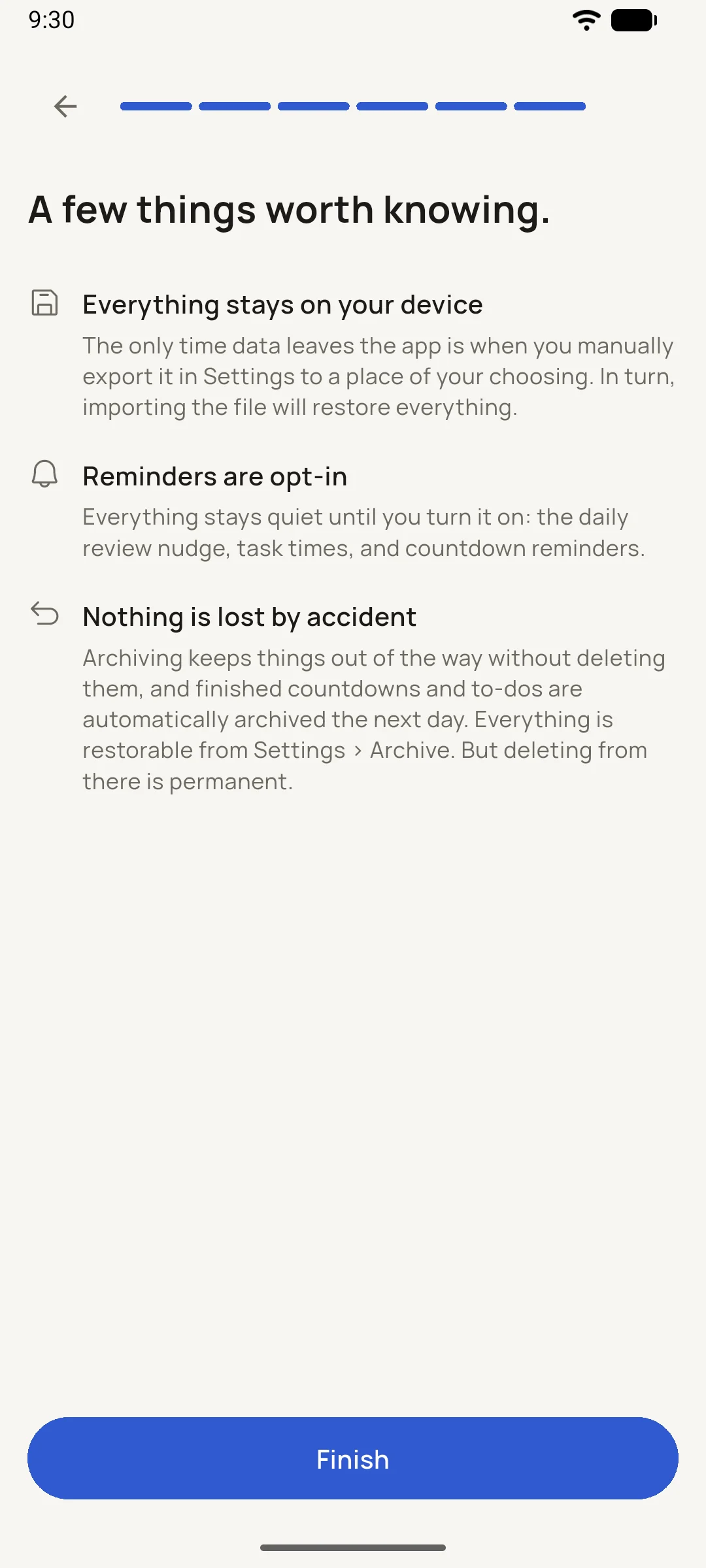
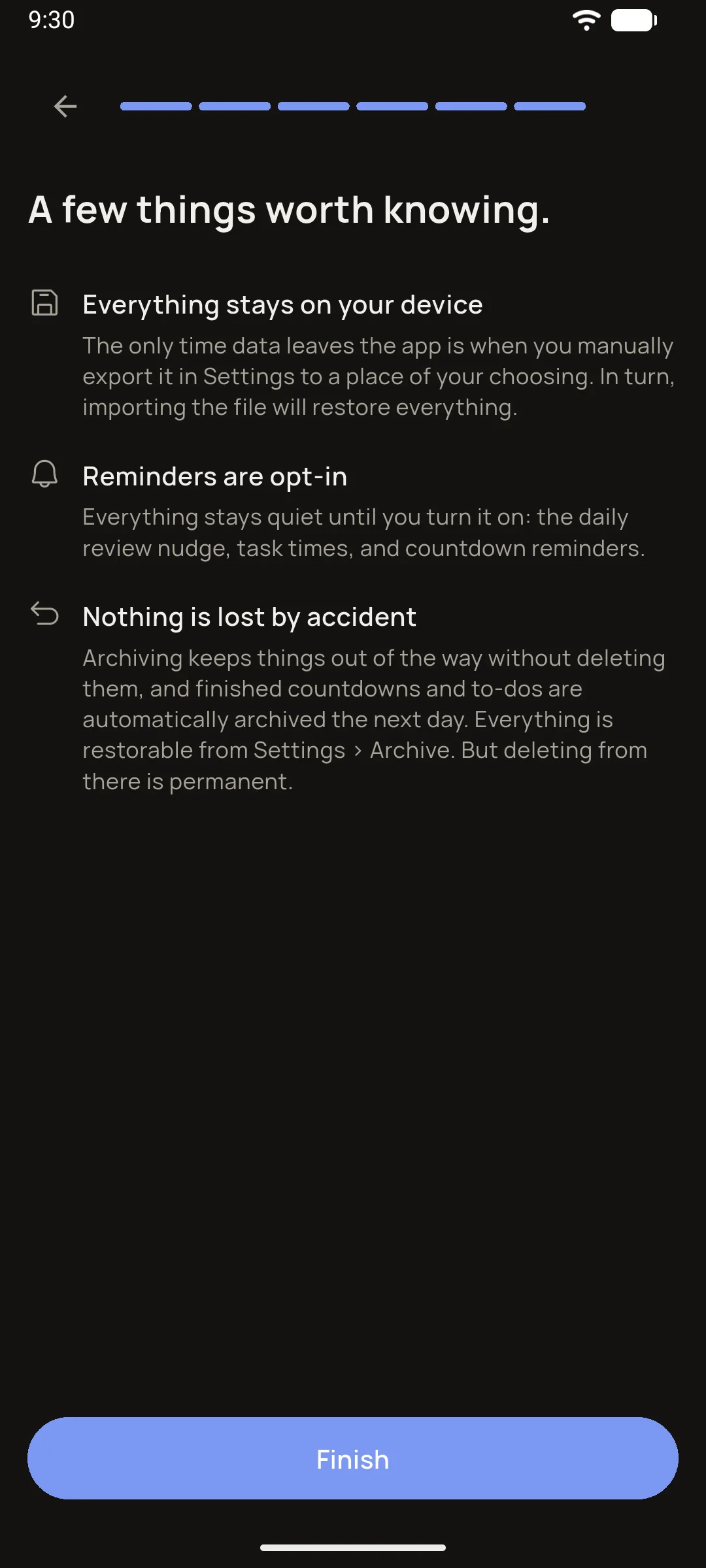
The full policy, one tap away and bundled in the app itself. No account, no server, no internet permission: your data stays on your device.
About
Send feedback
Opens your mail app with a line straight to the developer. This is a one-person studio, and the app gets better because people write in.
FAQ
Quick answers
Do I need an account?
No. There's nothing to sign up for. The app is fully functional the moment it's installed, and everything stays on your device.
What happens if I miss a day?
Nothing dramatic. Unreviewed days can be caught up the next morning, and deliberately skipping a task keeps its streak alive. The app records your days; it doesn't grade them.
Can I move my data to a new phone?
Yes. Export a backup file from Settings › Backup, move it however you like, and restore it on the new device. That file is also your long-term archive.
Will reminders definitely go off?
They're scheduled for the time you set, but Android decides exactly when they arrive. It can delay them, and an aggressive battery manager can drop them entirely. Treat them as a nudge, not an alarm clock. The app says the same thing when you first turn them on, because you would rather hear it from me than find out.
Is it a habit tracker? A journal? A to-do list?
A bit of each, on purpose. Tasks and streaks for routines, countdowns for dates that matter, notes and a nightly line for everything else, all feeding one history instead of three separate apps.
If your question is not up there, email me at studioinadot+mypersonallog@gmail.com. I read every message. This is a one-person studio, and the app gets better because people write in.